
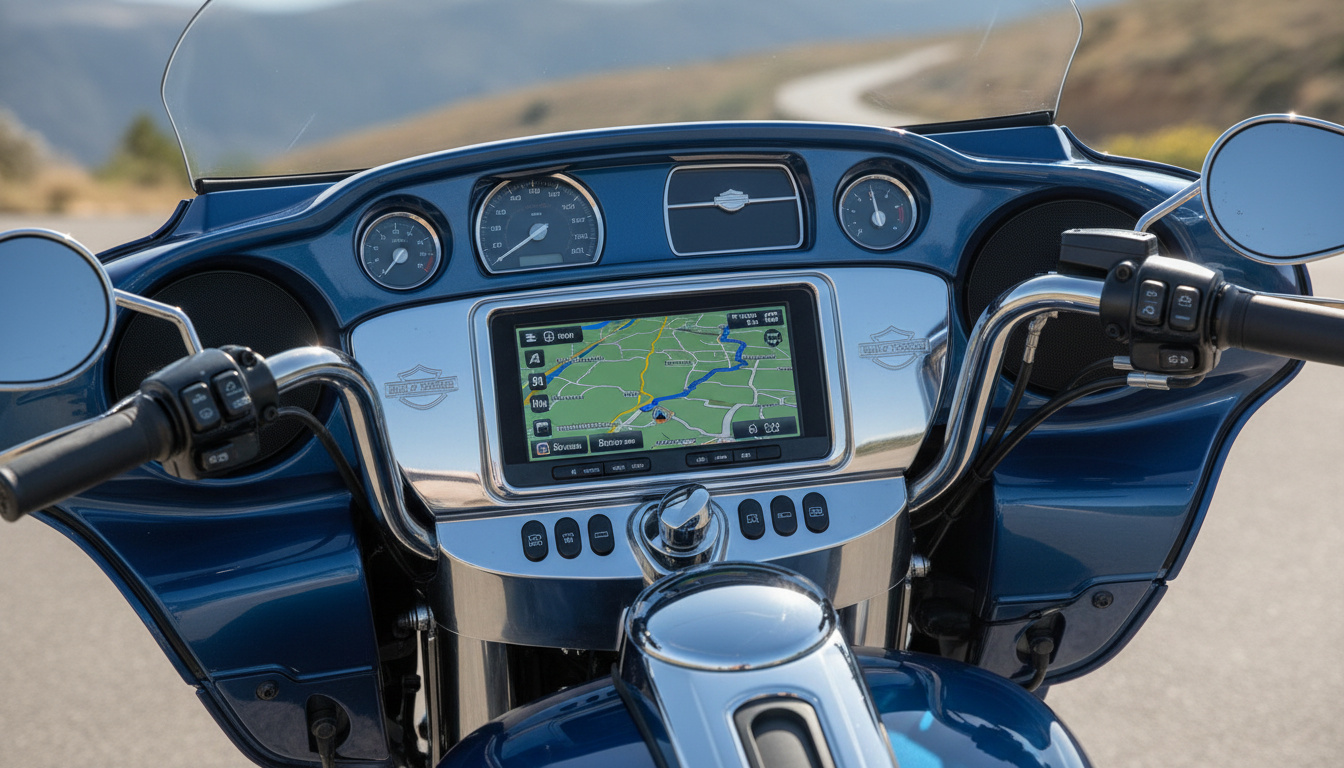
If your Harley-Davidson’s navigation maps still show roads that were repaved three years ago, you’re not alone. The Boom!™ Box infotainment system – introduced with Project RUSHMORE in 2014 and still running on millions of Touring bikes – uses HERE map data that needs periodic updates to stay accurate. The good news: as of 2026, Harley-Davidson’s nav map updates are free for owners of equipped models.
We researched the update procedures across the Boom!™ Box 4.3, 6.5GT (2014-2018 Touring), and the newer Boom!™ Box GTS (2019+ Touring) – then cross-referenced with the Harley-Davidson owner forums and the official HD support documentation. Here’s exactly how to do it, model by model.
Which Harley Models Have Factory GPS Navigation?
Not every Harley comes with factory navigation – and the system generation matters for how you update it.
Factory navigation (GPS) comes standard on select Touring and CVO models. Here’s what each generation includes:
| System | Model Years | Models | Navigation |
|---|---|---|---|
| Boom!™ Box 4.3 | 2014-2015 | Street Glide Special (2015), Electra Glide Ultra, Ultra Limited | Optional module + SD card |
| Boom!™ Box 6.5GT | 2016-2018 | Street Glide Special, Ultra Limited, Road Glide Ultra, CVO models | Built-in on premium/CVO trim; optional on base |
| Boom!™ Box GTS | 2019+ | Street Glide, Road Glide, Electra Glide Ultra (all trim levels), Road King Special, CVO | Standard on all equipped trims |
Rule of thumb: If your Touring bike has a 6.5-inch touchscreen and was built in 2019 or later, it has the GTS system. Pre-2019 6.5-inch touchscreens are the 6.5GT. The 4.3-inch touchscreen (2014-2015) is the Boom!™ Box 4.3. Models without a touchscreen – like base Road Kings and Softails – do not have factory GPS.
The Project RUSHMORE overhaul in 2014 was when Harley first introduced the touchscreen infotainment family across its Touring lineup. Everything before 2014 uses an older generation audio/navigation setup that follows a different update path.
How to Update GPS Maps on Boom!™ Box GTS (2019 and Newer)
The GTS system connects to the Harley-Davidson App, which is the primary way to download map data and transfer it. This is the cleanest method – no hunting for download links on the website.
How to Update GPS Maps on Boom!™ Box 6.5GT and 4.3 (2014-2018)
Older Boom!™ Box systems use a slightly different download path – the Harley-Davidson website directly rather than the app – but the USB transfer process is similar.
How to Update Software and Firmware (Wi-Fi OTA)
Software updates – which patch system bugs, add new features, and improve voice recognition – are separate from map updates, and both the GTS and 6.5GT support them over Wi-Fi.
This is the part most owners don’t know about: the Boom!™ Box system has built-in Wi-Fi. You can connect it to your home network once and let it pull software updates automatically, just like a smartphone.
- Connect to Wi-Fi: On the infotainment screen, go to Settings > Connectivity > Wi-Fi. Select your home network and enter the password. The system saves this for future sessions.
- Check for updates: Go to Settings > System > Check for Updates (GTS) or Settings > Software Update (6.5GT). If an update is available, you’ll see the version number and a changelog summary.
- Install: Tap Install Now. The download and install process typically takes 5-15 minutes over a solid home network. Keep ignition on ACC or engine running throughout.
- The system reboots automatically. After reboot, verify the new version under Settings > System Info.
Note: Software updates via Wi-Fi do not update navigation maps. Those are still a separate USB-based process. Think of it like a phone: iOS updates come via Wi-Fi, but offline maps are a separate download.
Troubleshooting: When the GPS Update Won’t Complete
A handful of problems come up repeatedly in owner reports. Here are the most common, along with what actually fixes them.
“USB not recognized” or update prompt never appears
The most common cause: USB drive is formatted NTFS or exFAT instead of FAT32. Reformat to FAT32 (on Windows: right-click drive > Format > FAT32; on Mac: Disk Utility > MS-DOS FAT). Also verify the map files are in the root directory of the drive, not inside a subfolder. Some owners report that USB 3.0 drives formatted to FAT32 on Mac need an MBR partition scheme (not GUID) – use the “Master Boot Record” option in Disk Utility.
Update freezes or errors mid-install
Usually a power issue. Run the engine (not just ACC) during the update to keep the battery topped off. If the system locks up mid-update, turn the ignition off for 30 seconds, then back on – in most cases the Boom!™ Box GTS and 6.5GT will detect the incomplete update and resume from where it left off. If it shows an error code instead, write it down – Harley’s infotainment support line (1-800-258-2464) can decode it.
Navigation shows “No GPS signal” after update
The GPS antenna needs a clear view of the sky to acquire satellites after a fresh map install. Park outside, away from buildings, and give it 3-5 minutes with the engine running. The 2011 HD Touring Service Manual (Section 8, p. 8-49) covers GPS antenna and module diagnostics for earlier systems, noting that a “Navigation Inoperative” symptom after system changes typically clears on cold-start GPS re-acquisition. If the no-signal persists indoors or after 10 minutes outside, check that the small GPS antenna wire (located near the inner fairing on most Touring models) wasn’t bumped loose during any maintenance.
App says “no update available” but maps seem outdated
Harley releases map updates roughly once per year (not on a fixed schedule). If the app shows no available update, your maps may already be the current version. Check the version number at Settings > System Info > Map Version on the infotainment screen. The HERE map data version is shown as a year/quarter string (e.g., “2025 Q2”). If it matches the latest release listed on harley-davidson.com, you’re current.
Wi-Fi software update fails or won’t download
Verify the bike is within good Wi-Fi range and that the network isn’t behind a guest/captive portal (hotel Wi-Fi won’t work). Corporate or mesh networks with client isolation enabled can also block the update server. A standard home router with WPA2 is the most reliable setup. If the download keeps stalling, the update can also be performed via USB – check harley-davidson.com for the USB-based software update package for your system version.
Harley-Davidson GPS: Frequently Asked Questions
These are the questions that come up most in owner forums and HD community threads – answered based on our research across the Boom!™ Box system documentation and owner reports.
Are Harley-Davidson GPS map updates free?
Yes. As of 2026, Harley-Davidson provides navigation map updates at no charge for owners of Boom!™ Box-equipped bikes (GTS, 6.5GT, and 4.3 with nav module). You need a free account at harley-davidson.com and your VIN registered to access the downloads.
How often does Harley release new GPS maps?
Roughly once per year, though Harley doesn’t publish a fixed update calendar. The maps use HERE Technologies’ road data – the same provider used by many automotive OEM navigation systems. Check the Infotainment Support section at harley-davidson.com or the HD App periodically, or check your current map version (Settings > System Info) to see if it’s current.
How do I know which Boom!™ Box version I have?
Check Settings > System Info on the infotainment screen. The system name (Boom!™ Box GTS, 6.5GT, or 4.3) is listed, along with current software and map versions. Alternatively: GTS = standard on 2019+ Touring models; 6.5GT = 2016-2018 Touring (6.5″ screen); 4.3 = 2014-2015 (4.3″ screen, nav via optional module).
Can I update a Boom!™ Box 4.3 (2014-2015) GPS via USB?
Yes, the 4.3 accepts updates via the USB port as well as the SD card slot. The SD card method is more commonly documented in owner guides – remove the panel on the left side of the bike to access the navigation module’s SD card slot, and copy the map files to a microSD card (with full-size adapter). USB is the simpler option if your 4.3 supports it; verify via Settings > System Info that USB updates are listed as a supported input for your firmware version.
What Harley models do NOT have factory navigation?
Standard (base) Softail models, Road King (non-Special), Sportster, and most entry-level Touring models without an infotainment upgrade package. Pre-2014 Touring bikes use an older Harman Becker audio/nav setup that follows a different – and now largely discontinued – update path. For those, the most practical option is aftermarket GPS (a full stereo replacement or a handlebar-mount unit).
Mounting a phone instead?
Plenty of riders on bikes without factory GPS – or who just prefer live traffic data – run a phone on the bars instead. Our research team compared handlebar clamps, fork-stem mounts, and fairing brackets for the vibration and weather exposure a Touring bike actually sees, so the mount survives the ride and the screen doesn’t crack.
See Our Phone Mount PicksHow long does a Boom!™ Box GPS map update take?
Typically 15-30 minutes for the USB transfer and install. The GTS tends to be faster (10-20 minutes) than older 6.5GT and 4.3 systems (20-35 minutes). Keep the engine running throughout to avoid battery drain causing an interrupted install.
Does the Street Glide vs Road Glide infotainment update the same way?
Yes – both the Street Glide and Road Glide share the same Boom!™ Box GTS system hardware on 2019+ models. The fairing design differs between the two, but the infotainment update procedure is identical. The USB port location may differ slightly (Street Glide: behind the fairing pocket panel; Road Glide: in the lower dash area) but the update process is the same.
Can a Harley dealership update the GPS for me?
Yes – any authorized Harley-Davidson dealer can perform infotainment software and map updates as a service. It’s worth calling ahead to confirm they have the current map package downloaded, since some smaller dealers may not keep the files readily on hand. Many HD forums report this takes 30-60 minutes of shop time. If the GPS update is bundled with routine service, it’s often done at no extra charge; as a standalone request, expect a nominal labor fee.
Final Notes
The Boom!™ Box infotainment family is a genuinely capable factory navigation system – the main thing holding it back is that most owners don’t know updates exist or how simple they are. The GTS + HD App path in particular takes less than 30 minutes total and requires no technical skill beyond plugging in a USB drive.
For deeper infotainment upgrades – speaker replacements, amp kits, or full system swaps on pre-2014 bikes – see our guide to Harley stereo upgrades. Riders updating their touring setup often also swap the stock turn signals at this stage – our roundup of LED turn signals for Harley-Davidson covers CANbus-compatible options for Touring models. If you’re evaluating which Touring bike to buy based on infotainment features, the Road Glide vs Street Glide breakdown covers the system differences in detail. Long-distance Touring riders who spend hours in summer heat should also check our guide to the best motorcycle helmets for hot weather. And if you’re thinking about a tour pack to round out your Touring build, check out our tour pack guide.
Research compiled May 2026, based on Harley-Davidson infotainment support documentation, the 2011 HD Touring Service Manual (infotainment diagnostics section), and owner reports from r/Harley and HDForums.com. Source: Harley-Davidson Infotainment Support.
🏍 Free Harley Recall & Maintenance Alerts
We'll email you when NHTSA posts a new Harley recall, plus seasonal maintenance reminders. No spam, unsubscribe anytime.
By subscribing you agree to our Privacy Policy.

Harley GPS is garbage, and should never be relied on to get you to a specific location, but likely will get you in the right area. Even after performing the update months later, GPS continues showing the Casino in Deadwood was on the opposite side of the road and a bit further down the road. while I sit in parking lot in front of hotel. Harley’s response, you’ll have to buy another update. That was in July – August of 2022. Fastward to July 2023 and it is still wrong according to new bike on dealer showroom floor.
Best option is to connect your phone to USB port and depend on Android Auto or Apple Carplay. Added benefit is an enhance music list from your phone rather than a small USB stick.
Possibly a new issue I encountered after having bike serviced is music breaking up, key depressions don’t work (actually work but severly delayed). I understand this behavior when a processor is being overtaxed and everything slows down. I asked the service center if they had enabled ‘event logging’ on the boombox that might cause this behavior. They had no clue what I was talking about and were not aware of any bike servicing routines performed from the boombox. I went to another service center and they responded the same. I told them it is intermittent and typically starts have some time on the bike. This matter is still unresolved. FYI : the system was updated to the latest software while I was troubleshooting. Also factory reset the boom box -it still haunts me.